Simple Animation and Pygame
The goal of this section is to animate multiple moving rigid balls that collide and bounce off one another, demonstrating the principle of conservation of momentum. While Python offers several libraries for creating animations (such as Tkinter, which we explored in the previous chapter), this section focuses on Pygame.
Pygame Library
Pygame is a library designed specifically for writing video games. It provides wrapper modules for handling graphics, sound, and input, allowing you to develop multimedia applications quickly without writing low-level platform code. Pygame is built on top of SDL (Simple DirectMedia Layer), a cross-platform development library that provides low-level access to audio, keyboard, mouse, joystick, and graphics hardware.
Because Pygame is a third-party package, you must install it using pip:
pip install pygame
Once installed, you can import the module and start building interactive applications. We will walk through a simple arcade game to introduce Pygame's core concepts.
Simple Game
In this mini-game, a ball drops from the top of the window, and the user controls a horizontal paddle at the bottom using the keyboard. If the paddle catches the ball, it bounces back up; if the ball slips past, the game ends. Here is the complete code:
import pygame
import random

# Initialize pygame
pygame.init()

# Set screen dimensions
screen_width = 600
screen_height = 400
screen = pygame.display.set_mode((screen_width, screen_height))
pygame.display.set_caption("Catch the Ball")

# Color definitions
PADDLE_COLOR = (100, 200, 100)
SCREEN_COLOR = (10, 10, 10)
BALL_COLOR = (200, 30, 30)

# Game variables
ball_radius = 15
ball_speed = 3
paddle_width = 100
paddle_height = 20
paddle_speed = 5

# Initialize paddle position (Rect object)
paddle = pygame.Rect(screen_width // 2 - paddle_width // 2, screen_height - 40, paddle_width, paddle_height)

# Initialize ball position (Rect object, for collision detection)
ball = pygame.Rect(random.randint(ball_radius, screen_width - ball_radius), 0, ball_radius * 2, ball_radius * 2)
ball_dx = random.choice([-1, 1]) * ball_speed
ball_dy = ball_speed

# Game loop flag
running = True
clock = pygame.time.Clock()

# Main game loop
while running:
    # 1. Handle events
    for event in pygame.event.get():
        if event.type == pygame.QUIT:
            running = False

    # 2. Handle user input
    keys = pygame.key.get_pressed()
    if keys[pygame.K_LEFT]:
        paddle.x -= paddle_speed
        if paddle.left < 0:
            paddle.left = 0
    if keys[pygame.K_RIGHT]:
        paddle.x += paddle_speed
        if paddle.right > screen_width:
            paddle.right = screen_width

    # 3. Update game state
    # Move ball
    ball.x += ball_dx
    ball.y += ball_dy

    # Wall collision detection
    if ball.left <= 0 or ball.right >= screen_width:
        ball_dx *= -1
    if ball.top <= 0:
        ball_dy *= -1

    # Paddle collision detection
    if ball.colliderect(paddle) and ball_dy > 0:
        ball_dy *= -1

    # Check if ball falls out of the bottom of the screen
    if ball.bottom >= screen_height:
        print("Game Over!")
        running = False

    # 4. Draw
    screen.fill(SCREEN_COLOR)  # Fill screen with black (clear screen)
    pygame.draw.ellipse(screen, BALL_COLOR, ball)  # Draw red ball
    pygame.draw.rect(screen, PADDLE_COLOR, paddle)  # Draw yellow-green paddle

    # 5. Update the screen display
    pygame.display.flip()

    # Control frame rate (60 FPS)
    clock.tick(60)

# Quit game
pygame.quit()
The game begins by calling pygame.init() to initialize all imported Pygame modules, followed by pygame.display.set_mode() to create the game window.
We define several constants and variables (like dimensions, speeds, and colors) to track game state. A particularly important class here is pygame.Rect, which is used to store and manipulate rectangular areas. Rect objects are invaluable in game development because they simplify position tracking, layout calculations, and—most importantly—collision detection. Both the ball and the paddle are represented as Rect objects.
Pygame provides drawing functions to render basic shapes on a surface. Here, we use pygame.draw.ellipse() to render the ball and pygame.draw.rect() for the paddle. To ensure smooth animation and prevent flickering, Pygame employs double buffering. All drawing operations occur on an off-screen buffer first. When pygame.display.flip() is called, the entire frame is swapped onto the visible screen in a single operation.
Within the main loop, the application continuously polls keyboard input via pygame.key.get_pressed(), moving the paddle if the left or right arrow keys are held. Simultaneously, the program updates the ball's coordinates, reversing its horizontal or vertical speed whenever it hits a boundary or collides with the paddle (detected using the .colliderect() method).
Generating Random Numbers
While most general-purpose programs require deterministic results, games rely heavily on randomness to create variety and unpredictable challenges. In Pygame and standard Python development, this is handled by the built-in random module.
The random module provides several utility functions for generating random values:
random.random(): Returns a random floating-point number between 0 and 1, including 0 but not 1.random.uniform(a, b): Returns a random floating-point number within a specified range defined by parameters a and b, including a but not b.random.randint(a, b): Returns a random integer within a specified range defined by parameters a and b, inclusive of both endpoints.random.choice(sequence): Returns a random element from a non-empty sequence.random.shuffle(sequence): Randomly shuffles the positions of elements in a sequence.random.sample(population, k): Selects k unique random elements from a population sequence or set.
import random

# Define a list
my_list = ['apple', 'banana', 'cherry', 'date', 'elderberry', 'fig', 'grape']

# Shuffle the list using random.shuffle
random.shuffle(my_list)

# Print the shuffled list
print("Shuffled list:", my_list)

# Use random.sample to randomly select 3 items
selected_items = random.sample(my_list, 3)

# Print the selected items
print("Selected items:", selected_items)
Running the program above will show different results each time.
Multiple Balls in Motion
Now let's tackle the momentum conservation simulation: rendering and moving multiple balls that collide with one another. To model this, we define a custom Ball class to encapsulate each ball's physical state (position, velocity, color, and size).
Modeling realistic elastic collisions requires vector math. When two balls collide, we decompose their velocity vectors into two components: one component parallel to the normal line (the line connecting the centers of the two spheres) and one component perpendicular to it (tangent to the collision). Under the conservation of momentum (assuming equal mass), the normal velocity components swap, while the tangential velocity components remain unaffected. We calculate the new velocities and convert them back into standard x and y coordinates for the next animation frame.
The program is as follows:
import pygame
import sys
import math
import numpy as np
import random

# Initialize Pygame
pygame.init()

# Set display screen size
SCREEN_WIDTH, SCREEN_HEIGHT = 450, 450
screen = pygame.display.set_mode((SCREEN_WIDTH, SCREEN_HEIGHT))
pygame.display.set_caption("Bouncing Balls")  # Window title

# Define Ball class
class Ball:
    def __init__(self, screen, position, speed):
        self.screen = screen  # Drawing surface
        self.position = np.array(position, dtype=float)  # Position (x, y)
        self.speed = np.array(speed, dtype=float)        # Velocity (vx, vy)
        self.radius = 30  # Ball radius
        # Ball color, randomly generated
        self.color = (random.randint(0, 255), random.randint(0, 255), random.randint(0, 255))

    # Check if ball hits boundary
    def hit_boundary_check(self):
        # If ball hits left or right boundary
        if self.position[0] + self.radius >= SCREEN_WIDTH:
            self.speed[0] = -abs(self.speed[0])
        elif self.position[0] - self.radius <= 0:
            self.speed[0] = abs(self.speed[0])

        # If ball hits top or bottom boundary
        if self.position[1] + self.radius >= SCREEN_HEIGHT:
            self.speed[1] = -abs(self.speed[1])
        elif self.position[1] - self.radius <= 0:
            self.speed[1] = abs(self.speed[1])

    # Update ball position
    def update(self):
        self.hit_boundary_check()  # Check if ball hits boundary
        self.position += self.speed # Move

    # Draw ball to screen
    def draw(self):
        pygame.draw.circle(screen, self.color, self.position.astype(int), self.radius)  # Draw ball on screen


# Collision detection and handling function
def hit_others_check(a, b):
    # Calculate distance between ball centers
    dist_vec = a.position - b.position
    dist = np.linalg.norm(dist_vec)

    # If the distance between balls is less than the sum of their radii, they have collided
    if dist <= a.radius + b.radius:
        # Calculate collision normal direction (line connecting centers)
        normal = dist_vec / dist

        # Calculate relative velocity
        relative_velocity = a.speed - b.speed

        # Calculate projection of relative velocity onto the normal
        velocity_along_normal = np.dot(relative_velocity, normal)

        # If velocities are moving apart, no handling needed (avoid sticking)
        if velocity_along_normal > 0:
            return

        # Simple conservation of momentum (assuming equal mass): swap velocity components along the normal
        # Essentially each bounces off the other
        a.speed -= velocity_along_normal * normal
        b.speed += velocity_along_normal * normal


balls = []  # Create 9 ball instances with initial positions and velocities
balls.append(Ball(screen, [100, 100], [3, 0]))
balls.append(Ball(screen, [100, 200], [-2, -2]))
balls.append(Ball(screen, [100, 300], [0, 3]))
balls.append(Ball(screen, [200, 100], [-1, -2]))
balls.append(Ball(screen, [200, 200], [-2, -1]))
balls.append(Ball(screen, [200, 300], [0, 3]))
balls.append(Ball(screen, [300, 100], [1, 2]))
balls.append(Ball(screen, [300, 200], [4, 4]))
balls.append(Ball(screen, [300, 300], [2, 1]))

number_balls = len(balls)
clock = pygame.time.Clock()

# Main game loop
while True:
    for event in pygame.event.get():
        # Exit the game if the close window button is clicked
        if event.type == pygame.QUIT:
            pygame.quit()
            sys.exit()

    # 1. Physics calculation
    # Check collisions between balls and update velocities
    for i in range(number_balls):
        for j in range(i + 1, number_balls):
            hit_others_check(balls[i], balls[j])

    # Update all ball positions
    for i in range(number_balls):
        balls[i].update()

    # 2. Draw
    # Fill the entire screen background with white
    screen.fill((225, 225, 225))

    # Draw all balls
    for i in range(number_balls):
        balls[i].draw()

    # 3. Refresh screen display
    pygame.display.flip()

    # Control frame rate (30 FPS)
    clock.tick(30)
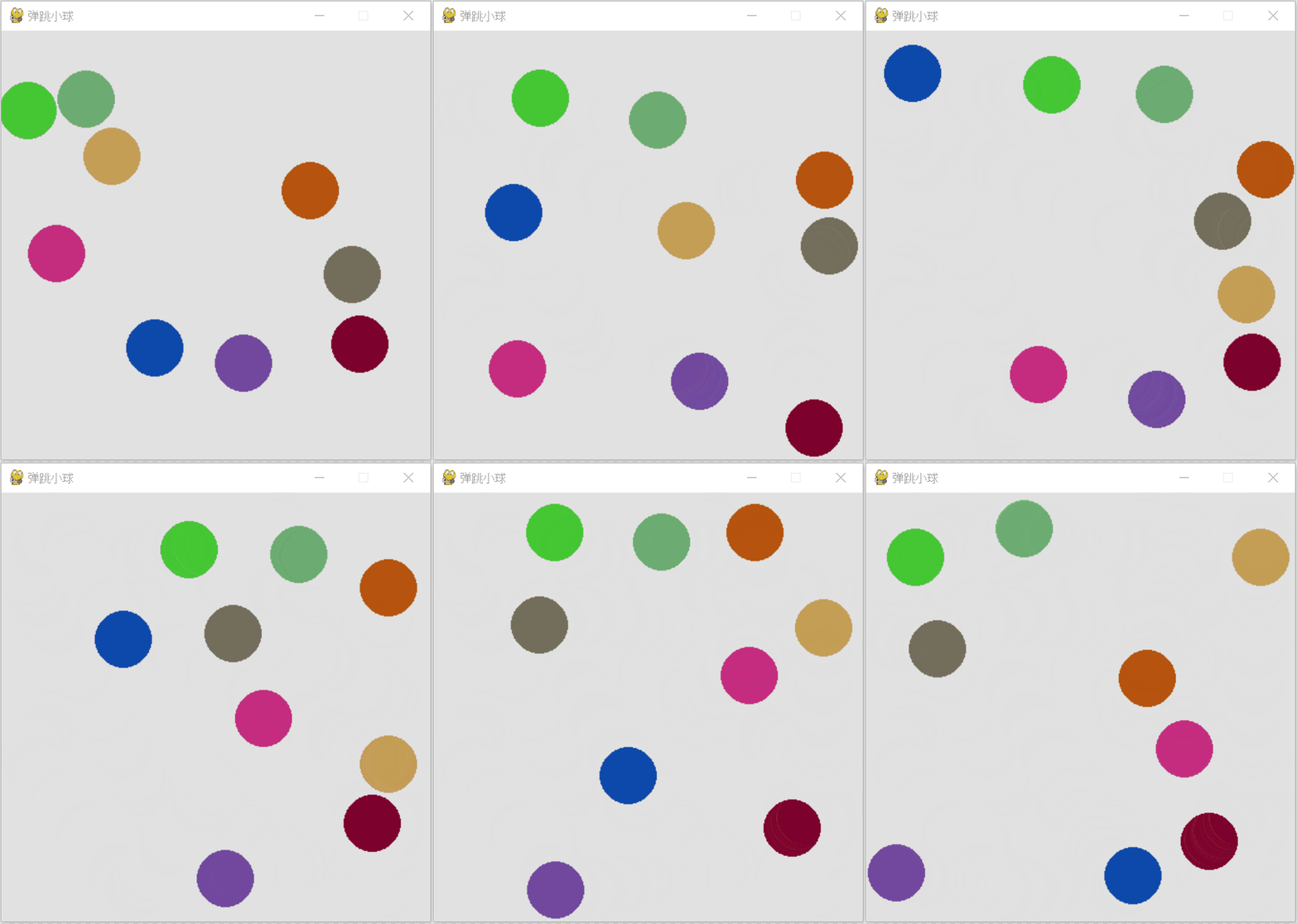
The program output looks roughly like this: